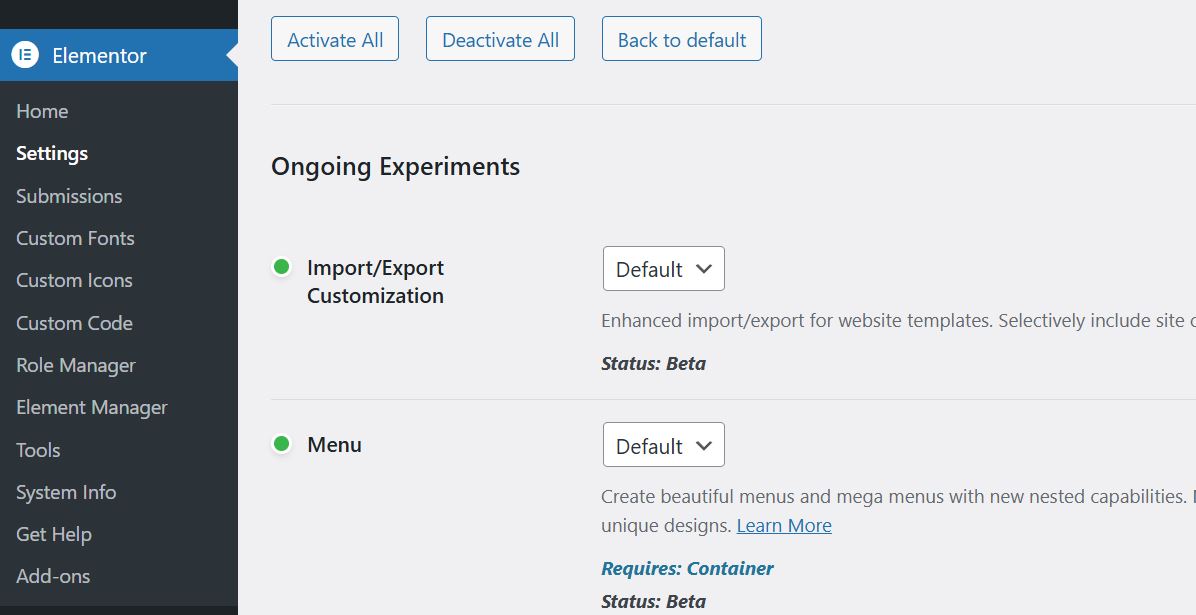
Disabling unused elements in Elementor’s Element Manager can improve website performance.
When you disable unused widgets through Element Manager, Elementor stops loading the CSS and JavaScript files associated with those elements. This reduces page size and decreases both PHP memory usage and the number of HTTP requests your site makes. Users have reported noticeable improvements, along with a much faster editor loading time.
What Gets Optimized
- Smaller page size: Fewer unused CSS rules and JavaScript files are loaded, which directly impacts load times
- Lower PHP memory requirements: Less processing overhead when rendering pages
- Cleaner editor interface: Removing unused widgets makes the Elementor editor itself load faster and provides a more focused building experience
How to Use Element Manager
- Navigate to Elementor > Element Manager in your WordPress admin panel
- Click Scan Element Usage to see which widgets are actually being used on your site
- Toggle off any elements you are not using, or click Deactivate Unused Elements to disable all unused widgets at once
Be careful not to disable elements that are currently in use on your site, as this could break your pages. The Element Manager includes a scanning feature that shows how many times each element appears across your site, making it easy to identify which ones are safe to disable.
1. External Resource Widgets (Highest Impact)
These widgets are typically the biggest bottlenecks because they must connect to external servers (Google, Facebook, etc.) before they can finish loading.
- Google Maps: This is widely considered one of the heaviest widgets. It loads multiple external scripts, map tiles, and API connections.
- Optimization: Use a static image with a link to Google Maps instead of the interactive widget whenever possible.
- Social Media Feeds (Facebook/Instagram): Widgets that embed live feeds (like the Facebook Page widget) are extremely resource-intensive. They load heavy external JavaScript SDKs and tracking scripts that block page rendering.
- Video Embeds (YouTube/Vimeo): While Elementor’s native video widget is decent, embedding multiple videos without “Lazy Load” enabled will force the browser to download player data for every video immediately.
2. JavaScript-Heavy Interactive Widgets
These widgets require the browser to download and execute complex code files to function, which increases the “Script Evaluation” time in speed tests.
- Sliders and Carousels: The Slides widget and Media Carousel require heavy JavaScript libraries (like Swiper.js) to handle touch gestures, transitions, and responsiveness. Nested carousels (putting a carousel inside another element) are particularly damaging to editor performance.
- Lottie Animations: While Lottie files themselves are small JSON files, the player library required to render them is JavaScript-heavy. Using multiple Lottie animations on a single page can significantly spike CPU usage.
- Animated Headlines: This widget loads a dedicated animation engine to handle the typing/rotating effects, adding extra weight for a relatively small visual benefit.
3. Third-Party Add-on Packs
A common “hidden” performance killer is installing massive third-party add-on packs (e.g., “Ultimate Addons” or “Essential Addons”) just to use one specific widget.
- The Problem: Many of these plugins load a global CSS and JS file for all their widgets, even if you are only using one. This adds unused code to every page of your site.
- The Fix: Use “Modular” add-on packs that allow you to disable the widgets you aren’t using in their settings panel, similar to Elementor’s own Element Manager.
| Widget Type | Primary Performance Cost | Solution |
|---|---|---|
| Google Maps | External API calls, heavy rendering | Use static image screenshot linked to Maps |
| Social Feeds | Tracking scripts, external requests | Use static icons or a specialized lightweight plugin |
| Sliders/Carousels | Heavy JS libraries, layout shifts | Use a static Hero image or limit to 1 slide |
| 3rd Party Packs | Unused CSS/JS loading globally | Disable unused widgets in plugin settings |
Which Elementor widgets have the biggest performance impact
How to test site speed before and after changes
Failed to load resource: the server responded with a status of 404
This error indicates that your website is trying to load a specific stylesheet. This typically happens after an Elementor update when the internal file references are updated but the actual CSS files haven’t been regenerated or cleared from the cache.
Primary Solution: Regenerate CSS & Data
This is the most effective fix for Elementor 404 asset errors. It forces Elementor to rebuild its internal paths and CSS files.
- Log in to your WordPress Dashboard.
- Go to Elementor > Tools.
- Click the Regenerate Files & Data button.
- Click Save Changes.
Secondary Steps
If the error persists after regenerating files, follow these steps in order:
- Clear All Caches: Clear your browser cache, any WordPress caching plugins (like WP Rocket or SG Optimizer), and server-level cache (CDN/Cloudflare). Old caches often point to file versions that no longer exist.
- Check Elementor Experiments:
Clean Elementor Revision History
Limit or purge page/post revisions to reduce DB size.
Delay Non-Critical JavaScript
Defer scripts that don’t impact first paint, like analytics or chat widgets.
Minify and Combine Files
Compress and combine CSS/JS files to reduce total requests and size.
Eliminate Render-Blocking Resources
Move critical CSS inline and non-essential styles/scripts below the fold.
Host Fonts Locally Using WOFF2
Self-host Google Fonts in WOFF2 format for best performance/control.
Preload Critical Fonts
Add <link rel="preload"> tags for fonts used in menus and headings.
Implement Font-Display: Swap
Set font-display: swap in CSS to avoid invisible text during font loading.
Limit Font Variations & Weights
Reduce the number of font weights/styles loaded on each page.
Convert Images to WebP Format
WebP images are up to 30% smaller than JPEG/PNG without loss of quality.
Implement Smart Lazy Loading
Native loading="lazy" for images/videos defers off-screen loading.
Preload Above-Fold Images
Preload only hero images and core branding assets for instant visual response.
Troubleshooting Common Speed Issues
High TTFB Problems & Solutions
Often caused by slow hosting, unoptimised website, high numbers of plugins, or unoptimised DB/configuration.
Cumulative Layout Shift Fixes
Set explicit element heights; preload key fonts; avoid injecting content above-the-fold dynamically.
JavaScript Execution Time Issues
Reduce 3rd party scripts, use async/defer loading
Improve LCP
- Remove the background image from the container or section and instead drag in an Elementor Image widget inside that same container. Use the same image file and set the image size to “Full” so it stays sharp.
- Set the image height to 100vh (100 percent of the viewport height) so the image fills the full screen height, matching the original container.
- In the Image widget’s style, set
object-fit: coverso the image always covers the container without stretching, cropping instead of distorting when needed. - Change the image’s Position to Absolute inside the container, then lower its z-index so it sits behind the text and buttons, effectively acting like a background.
- For mobile, override the height from 100vh to a fixed 500px so the hero is not too tall on small screens and remains nicely responsive.
Enable Experimental Performance Features
Elementor includes several experimental features designed specifically to improve loading times. Access these through Elementor > Settings > Experiments in your WordPress dashboard.
Activate these stable features:
- Optimized DOM Output: Reduces the number of wrapper elements in Elementor’s HTML structure, decreasing page size and improving rendering speed
- Improved Asset Loading: Loads infrastructure JavaScript code only when needed on each page, significantly reducing JS file sizes
- Improved CSS Loading: Minimizes unused CSS through conditional and inline loading experiments
- Inline Font Icons: Converts Font Awesome icons to inline SVG, reducing external requests
Configure CSS Print Method: Set CSS Print Method to “External File” in Elementor settings. This loads styles as separate cacheable files instead of inline code, improving browser caching and reducing HTML document size. Note that some caching plugins may require cache clearing when using this method.
Element Caching
Activate Elementor’s built-in element caching feature for static widgets. This stores rendered widget output and serves it on subsequent requests, dramatically reducing server processing time for repeated elements.
Best lightweight themes:
- Hello Elementor: The official theme designed specifically for Elementor, weighing only 6KB and requiring minimal server requests. While Hello Elementor alone is extremely fast, performance decreases when Elementor is activated, though it remains one of the best choices for Elementor users.
- Astra: Highly customizable and performance-focused with deep Elementor integration
Image Optimization Strategy
Images typically account for the largest portion of page weight on Elementor sites. Implement these optimizations:
Format and Compression:
Loading Optimization:
- Enable lazy loading for images and sections to delay off-screen content until users scroll near it
- Preload above-the-fold images to ensure hero sections appear instantly, improving Largest Contentful Paint (LCP)
- Exclude important above-the-fold images from lazy loading to prevent Core Web Vitals penalties
Essential caching configurations:
- Page caching: Store static HTML versions of dynamic pages
- Browser caching: Set appropriate cache headers for static assets
- GZIP compression: Reduce file sizes during transmission
- Database optimization: Clean up post revisions and transients
Design Best Practices for Performance
Your design choices directly impact page speed. Follow these guidelines:
Widget and Section Optimization
- Use fewer widgets and columns: Each additional element increases DOM size and rendering time
- Avoid nested inner sections: Excessive nesting creates heavy HTML structures. Use Flexbox Containers instead for cleaner, more efficient layouts
- Limit global widgets and dynamic content: These add database queries and increase processing time. Use static content where possible